
On this page
The signup process differs based on your needs. We’ll clarify some of the choices presented here.
a. "Simple Inventory", "Power User" and "Setting this up for a Group"
These selections are presented both when you first register an account and from the Settings->Subscriber Profile page. Because they are on the Settings page, it's easy to switch back and forth between them.
Simply click on the 3-menu bar at the top left, click the Settings icon, and click User Profile.
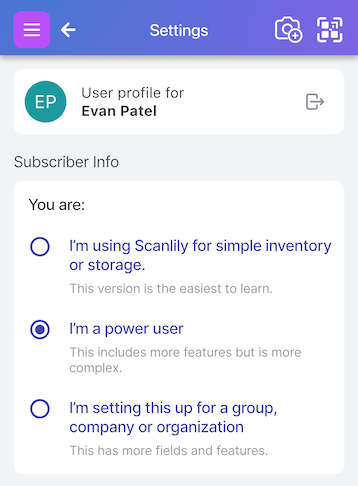
The options present successively more features:
Simple inventory and storage is the best selection for home inventory or simple inventory. It involves the quickest setup. It keeps the user interface simple and removes more advanced features such as the ability to create multiple items from one image. It removes the bookings system and many other features that are unlikely to be used for home inventory.
Power user adds most of the other features an individual user may want to use. However, it presents you with more screens during setup and may show unnecessary features for simple inventorying.
Group, company or organization presents a longer onboarding process with additional fields to enter, including the Group name, a survey.the working hours for which to allow bookings (for example, 9 am to 5 pm), and the ability to define multiple addresses.
b. Defining your address
During the registration process for the Power User and Group registrations, you will be asked to define your address.
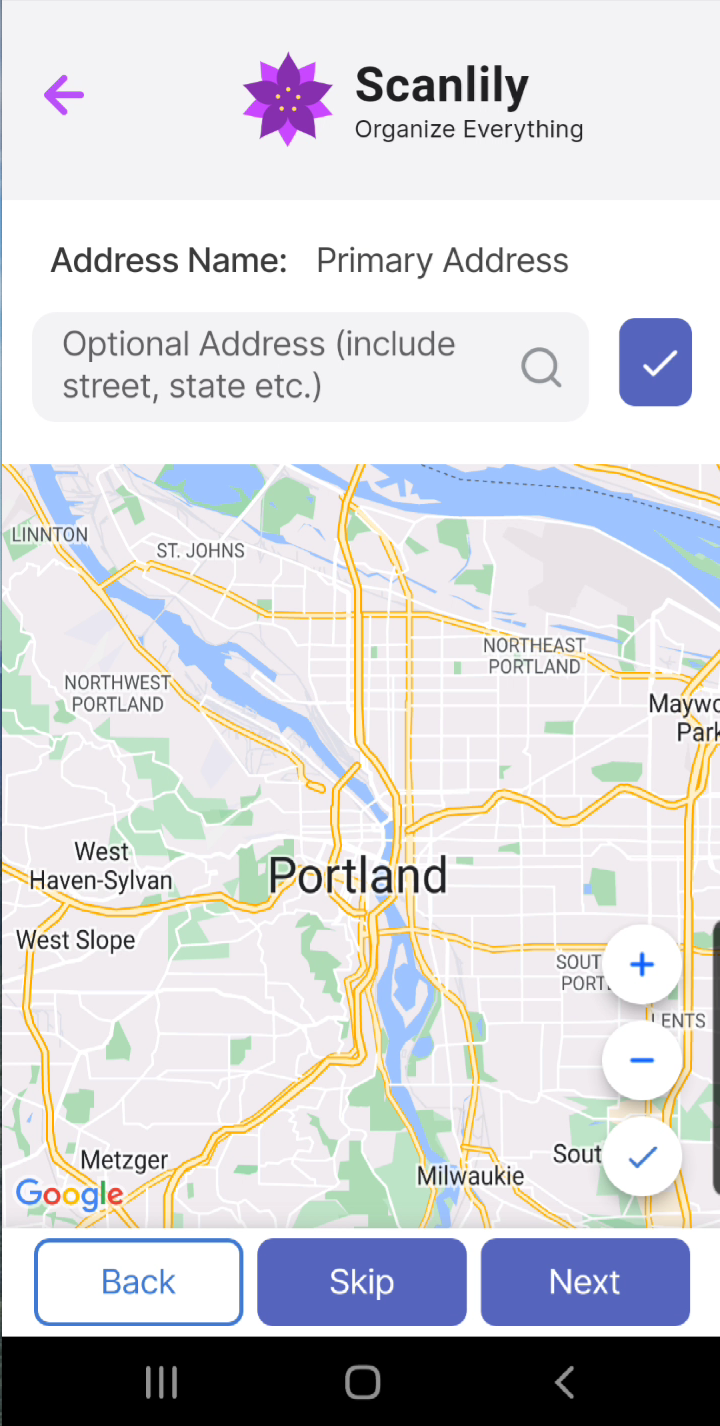
The address is used to set the map on the dashboard. It is also used to organize and sort your items. Scanlily will never share your address information with anyone.
You can skip adding the address. This will limit GPS and multi-address features. However, if you skip it during registration, you can add it later in the app via Settings.
c. Selecting a Booking Mode
When setting up for a Group, Organization or Company mode, you will be asked to select a booking mode if you selected by group. You can change it later in settings. The tutorials section on bookings describes the differences.
d. Selecting Working Hours
During registration, if you selected the booking mode Reservations or Reservations with Pickups, you will be asked to define the working hours during which bookings can be scheduled. This can be changed later in settings.
e. Abbreviated Registration for Users Invited to an Account
Business accounts can use the web system to send email invitations to invite new users.
Because they won’t be setting up a new account and joining one, those users won’t have to follow all the registration steps of setting up a new account.