
On this page
UPC and EAN Scanning
a. Feature Summary
Scanlily offers comprehensive UPC and EAN code lookup capabilities, enabling efficient product data population for your inventory. This powerful feature streamlines the process of adding items by leveraging both UPC and EAN barcodes.
Scanlily’s UPC and EAN Lookup feature allows you to scan existing UPC and EAN barcodes to pull up product information, image and prices and then instantly populate this information into Scanlily.
Drawing from a database of over 550 million product UPC matches, the Scanlily UPC feature makes quick work of populating your home or business inventory.
This feature saves research and manual data entry for each product. It's an efficient way to add items with existing UPC codes.
b. Prepare for using UPC and EAN Features
To use the feature, make sure the "UPC" or "EAN" attribute is visible for your items. If you didn't select one of these when you set up your account, you can follow these instructions to add it.
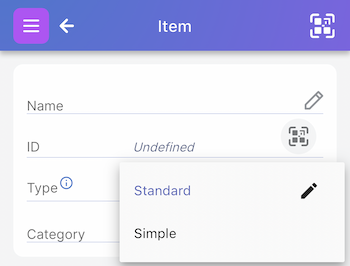
1. From any Item Page, click on the dropdown next to “Template”. Then select the pencil to the right of the Template you want to edit.
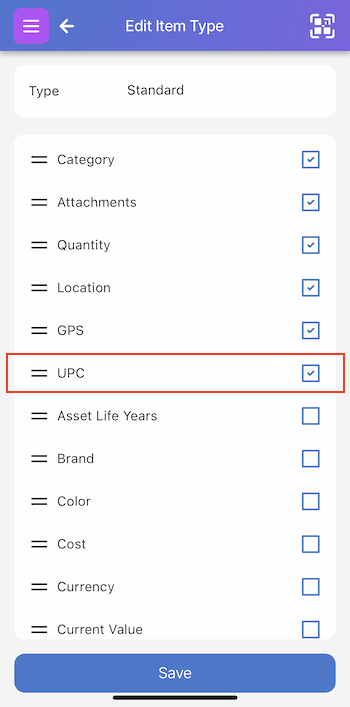
2. This brings up the Edit Item Template page. Scroll down and check the box next to UPC.
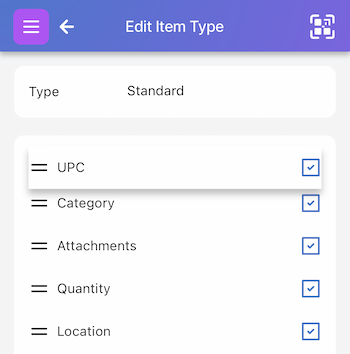
3. Optionally, hold down and drag the ‘UPC’ for ’EAN’ to the top of the list for easy access. This will make the UPC field appear at the top of the item page.
c. Using the UPC/EAN feature
1a. Create a new Item via UPC
Click the upper right Scan icon on any page and then scan the UPC or EAN barcode.
1b. Update the current Item via UPC or EAN
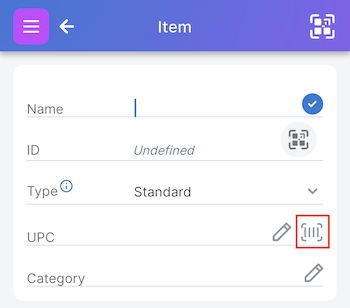
On the Item Page, click on the barcode next to the UPC field.
2. Scan the UPC or EAN barcode on the product
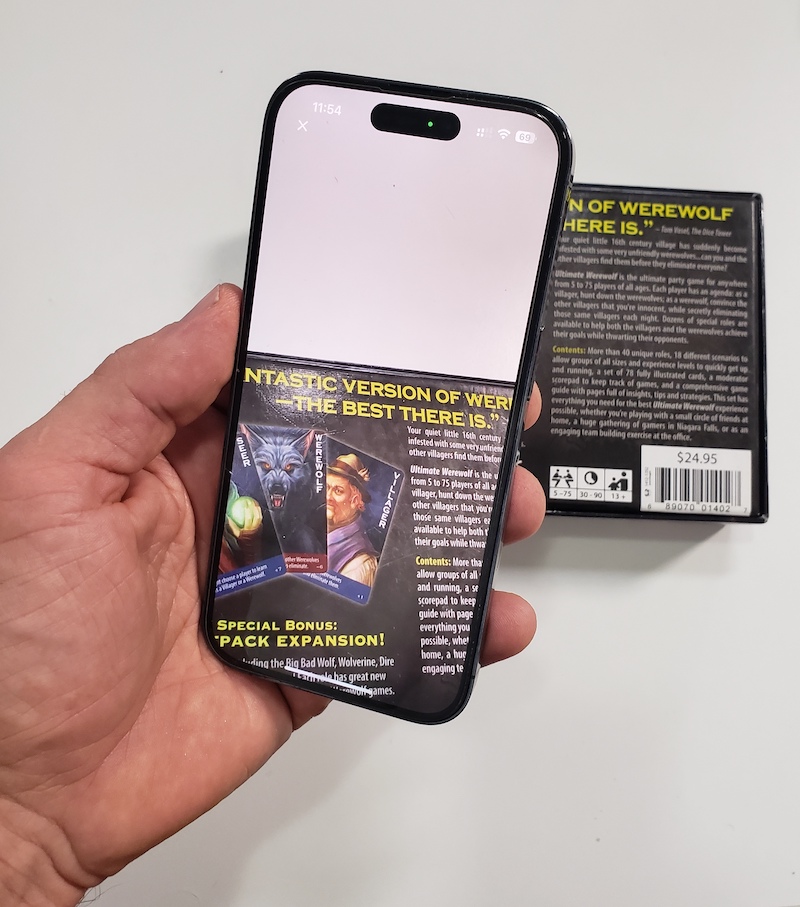
3. When the product pulls up, select which attributes you'd like to pull into Scanlily.
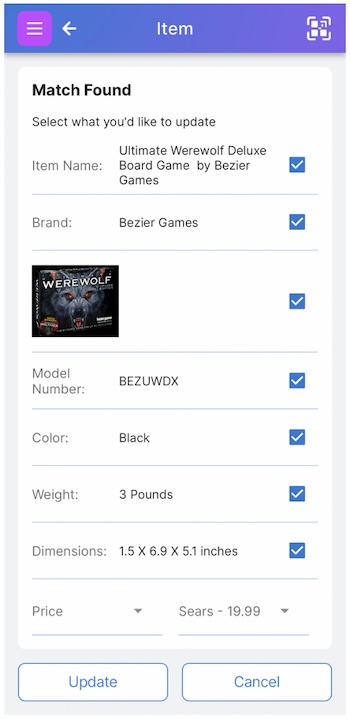
4. Select pricing
For many products, a pulldown at the bottom right shows prices of the product from various vendors. You can select one.
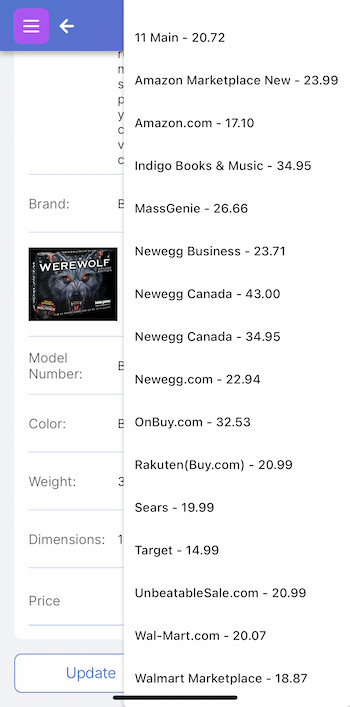
Then to the left of that you can assign the price to one of four attributes: cost, price, current value and original value.
5. Updating your item
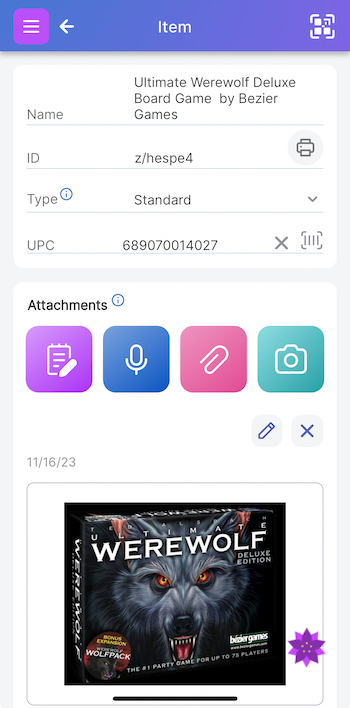
After you are done selecting attributes you want, then click on Update. The information will be pulled into the Item record.
d. Frequently Asked Questions about UPC and EAN Lookup
What is EAN lookup and how does it differ from UPC lookup?
EAN (European Article Number) is a 13-digit barcode standard used internationally, while UPC (Universal Product Code) is a 12-digit standard primarily used in North America. Scanlily's lookup feature seamlessly handles both, allowing you to scan either type of barcode to retrieve product information from our extensive database. The process for using EANs is identical to that for UPCs within Scanlily.
Can I perform an EAN search within Scanlily?
Yes, absolutely. Scanlily's system is designed to recognize and process both UPC and EAN barcodes. Simply use the same scanning method described in section 'c' to look up products using their EAN codes.