
On this page
Scanlily has just launched a way for you to catalog items or containers in seconds without needing to battle spreadsheets or take photos of each item one after the other.
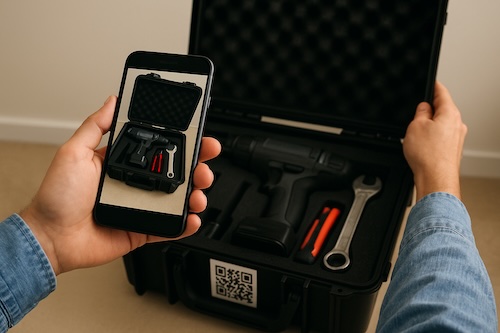
Instead, you record a video of an item or items you want to put in a container while talking naturally about what you see, and the AI does three things simultaneously:
Watches Your Video
Scanlily’s AI will analyze every frame to identify individual items and then extract clear photos automatically. Our AI will capture multiple angles of each object so you can choose the best one later, and it can also tell separate items apart even if they are jumbled together!
Listens to Your Voice
As you’re recording the video, Scanlily AI will also listen to your voice and convert your speech to text in real-time. So, for boxes containing items inside, you can say "there are 100 Band-Aids in this box," and the AI will understand that you mean the quantity in the captured item.
Scanlily AI also captures sentimental qualities and descriptions like "this was made by my grandfather". So whether it’s that stunning tablecloth, crocheted with impossibly fine thread by a great-grandmother we never met, or grandpa’s worn-out leather satchel, the AI will capture the story behind it.
You can also give commands like "catalog these plates as duplicates" so that it doesn’t make multiple entries for similar items.
Organizes Everything Automatically
Once you’re recording a video of your items, Scanlily’s AI will create individual item entries from the video. For each item, it’ll write detailed descriptions (including any unique qualities you spoke about), attach the images, and also create dozens of fields for ‘price’, ‘location’, etc.
Scanlily’s AI will also group duplicate items when you mention them and then name the container based on its contents. Finally, you can then place your Scanlily QR sticker on the container after you’ve closed it, and anyone who scans it with their phone will see the list of all the items inside with photos attached!
Adding Multiple Items by Video with AI
You can cut the hours you’ve been sinking into cataloging your inventory into mere minutes. Now, gather some items you deal with frequently and pick up your phone. If you will be inventorying many items, it's best to put them into a container.
Step 1: Create or open a container
Open the Scanlily app on your phone, head to ‘My containers’ from the main menu and either select an existing container or create a new container by scanning a QR at the upper right:

or by adding without a QR via the Camera+ button:

Follow the steps to either create a container from an image or without AI.
Step 2: Record a video
Once you have your container and opened it, then under "Add Items to Container" choose "Without QR" to add your items.
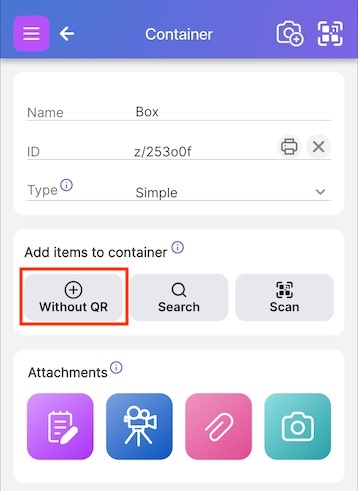
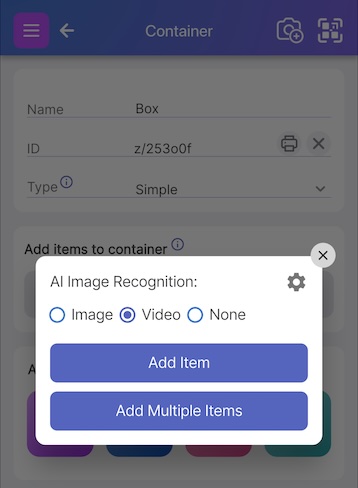
You will be presented with a popup. Select "Video" and then either "Add Item" or "Add Multiple Items":
You'll be reminded that it's best to talk while you record so that the AI can pick up details that it will add to the item descriptions: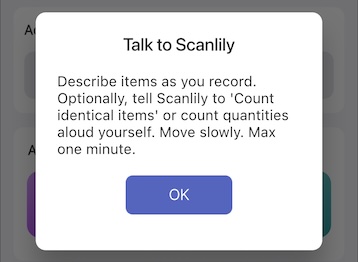
Describe what you see naturally as you film. Each video can be up to 1 minute and you can record multiple. Scanlily can reasonably recognize up to 60 items per video. Move slowly so that the AI can clearly recognize the items.
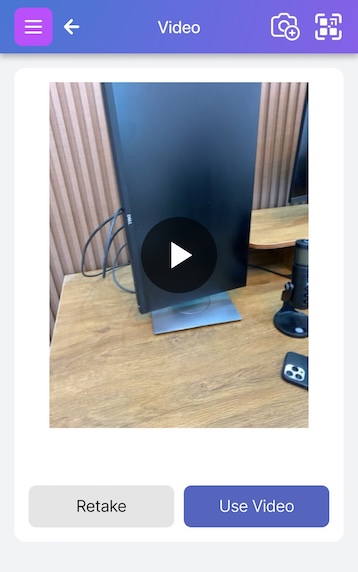
You'll receive a prompt that your video has been submitted. Because this will take some time depending on the complexity, you can proceed with other work and even record another video while you wait.
Step 4: Approve the AI-generated content
You'll be prompted when the video processing is complete. If you are in the middle of recording, it won't display a prompt until afterwards so as not to disturb you.
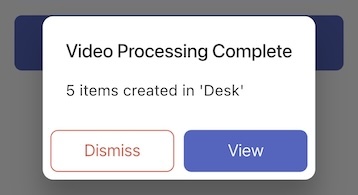
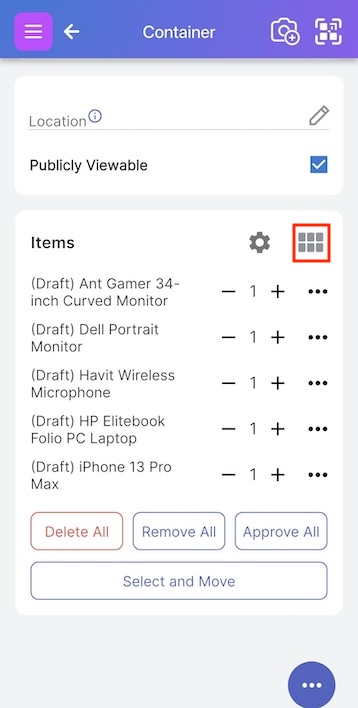
The items will appear as drafts at the bottom of the container. Click on each one to review and approve the draft. Click on the six square icon to see images of the items in the container.
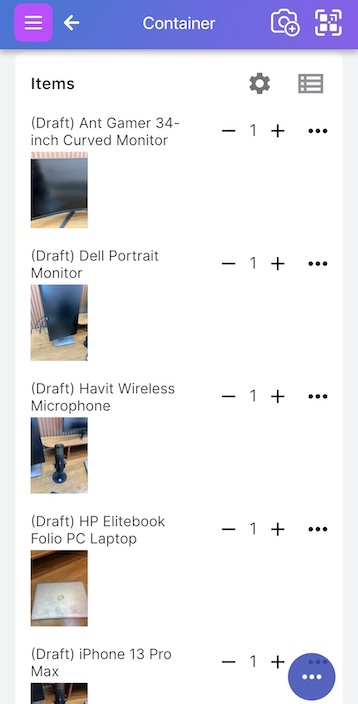
Click on the item name or photo to open the full item description and also see more images captured. You can choose which image best represents the object and also approve which AI-generated fields you'd like to keep:
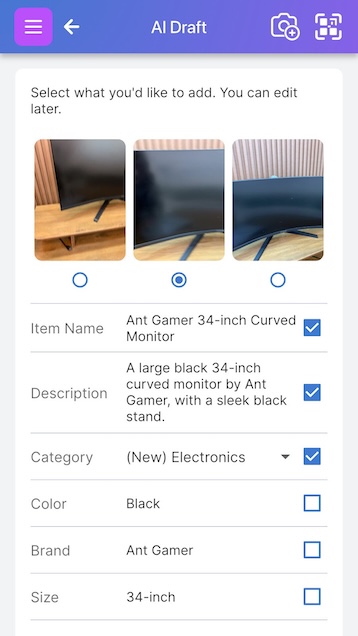
Once you’re done, click ‘Approve’, you will see a 'Next' button to review and approve the next draft item. You can also go back to the container page via the back button at the top left. Selecting ‘Approve all’ from there will approve all the draft items without a review; however, it will pick what it thinks is is the best image and the descriptions for items such as books and games might not be as detailed because bulk approval skips an extra lookup step.
Your inventory management just got transformed!
Before now, you probably used hours to type or generate descriptions, had incomplete inventories that you never finished, and an unhealthy number of mystery boxes labeled "misc". Or you’ve lost or wasted money buying items you later discovered you already had.
With Scanlily’s AI Video Recording, you can now catalog your inventory in incredible detail in minutes by recording videos of your items naturally. And once you attach a Scanlily QR sticker to your container, all its contents are visible to anyone.
Technology should make tedious tasks effortless, not replace one manual process with another slightly less manual process. And that’s what Scanlily AI video just did for your inventory!