On this page
Although you aren’t required to categorize your items, using the Category attribute can help you better organize your items throughout the system and find them quicker. If you log in to the user website, you’ll see that most of the reports allow you to group by category.
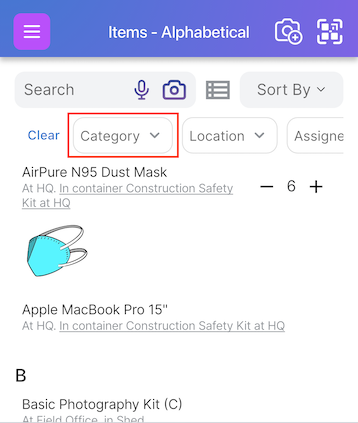
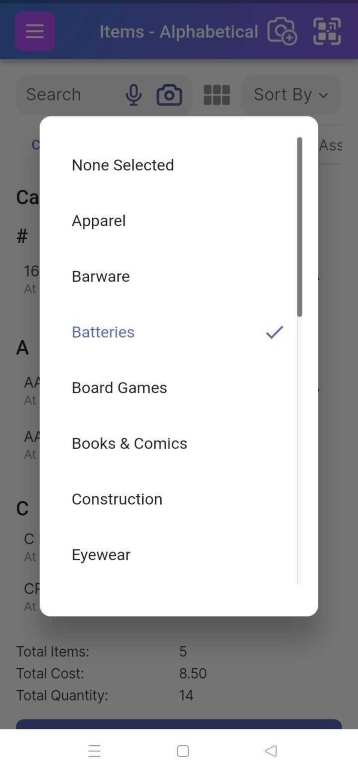
You can filter the results of your Item List or Container List to apply only to certain categories. Do this by clicking on the search field.
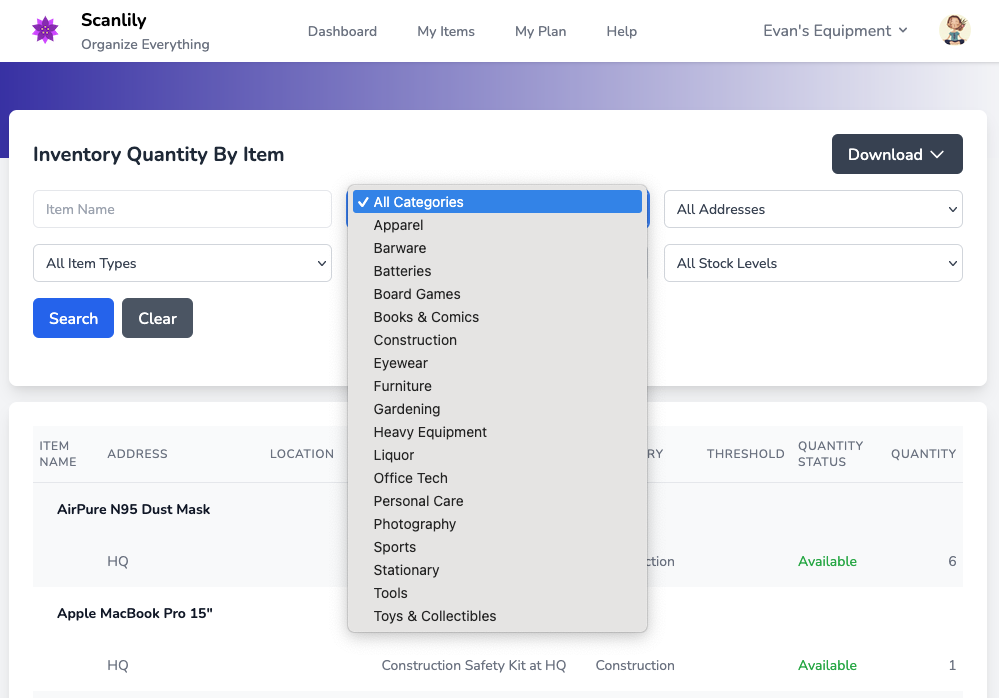
The following shows how a report can be filtered by Category.
a. Category vs. Template
Besides having categories, items also have a Template (shown as Template on the Item Page).
Template and Category have different purposes. Template indicates the collection of attributes used for that type of item. Here are some scenarios of using Template and Category:
1. There is one Template, but many Categories
Scanlily provides a default Template called “Standard,” which you can tailor. In many cases, that is all that is needed for all items. For example, if your assets are all books, your Template might include attributes like “Cost,” “Number of Pages,” and “Publisher.” Your categories might be “Mystery,” “Romance,” “Children’s,” etc.
2. There are multiple Templates and Categories, and they have the same name
Your assets might include vehicles and appliances. In this case, you might create a Template named “Vehicle” and a category called “Vehicle.” Your Vehicle Template specifies attributes of “Wheels”, “Horsepower,” “Range,” etc. Then your “Appliance” Template might have attributes of “Voltage” and “Weight,” and those items are also in a category called “Appliance.”
3. You have a mix
Some items have the same-named Template and Category and other items share a Template but are in a different Category. Scanlily is built flexibly to allow this. For example, if we added Books to our Scenario #2, above, then we’d still want to have the categories “Mystery,” “Romance,” etc, but with those items all sharing the Template “Book”. However, all the vehicles would have both Template Vehicle and be in category Vehicle.
b. How to add or update categories.
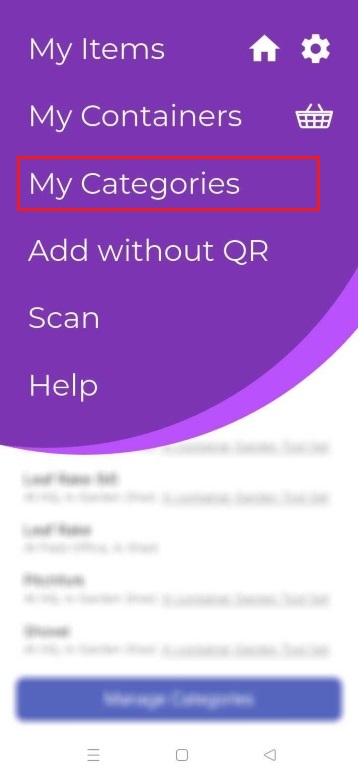
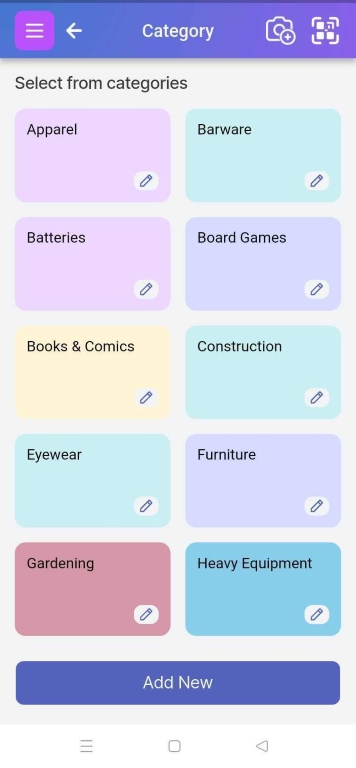
You can select or add new categories or manage them by selecting My Categories from the menu:
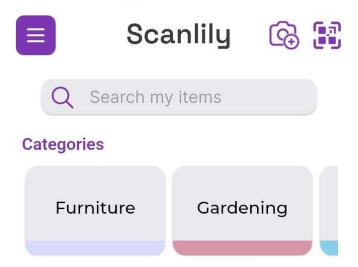
Or you can navigate to the homepage and select a category or click Add New under the Category section:
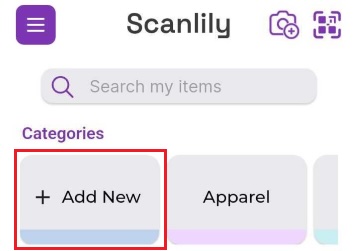
Type in the new category name then click Add.You can also navigate to the Categories list to edit, delete and add new categories:
You can also rename or delete categories on the main category page. Click on the three-bar menu at the top left and then click My Categories.
Then on the Manage Category page, you can click on a pencil to rename or delete a category. Click on Add New to create a new one.
c. Sorting and filtering by categories.
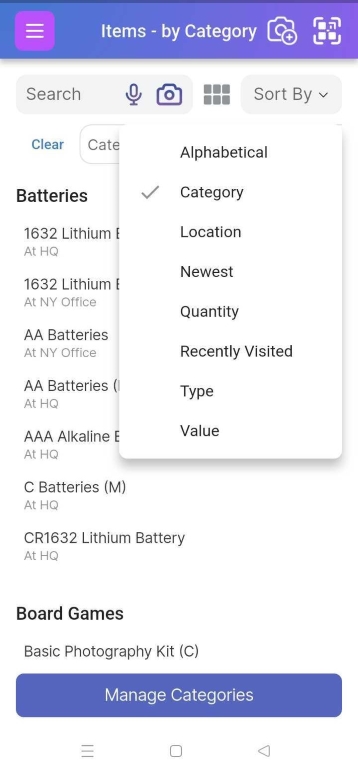
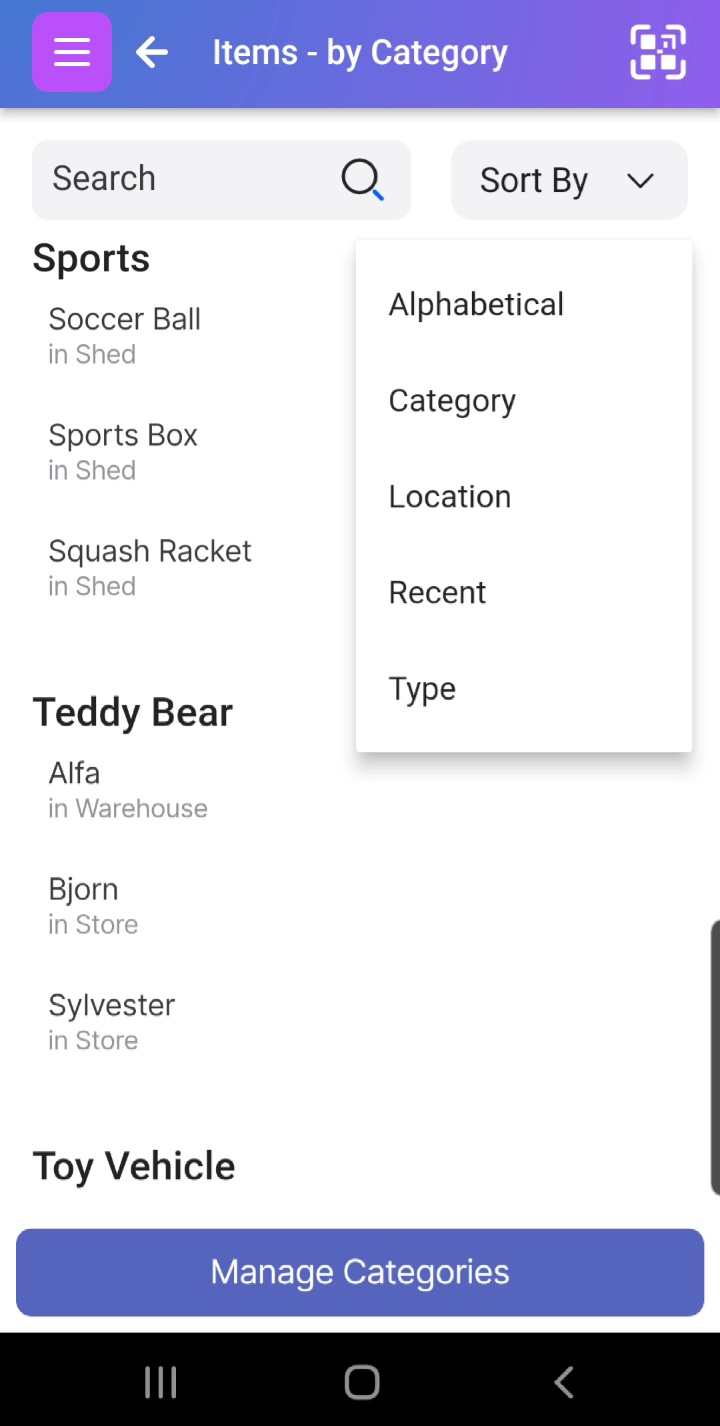
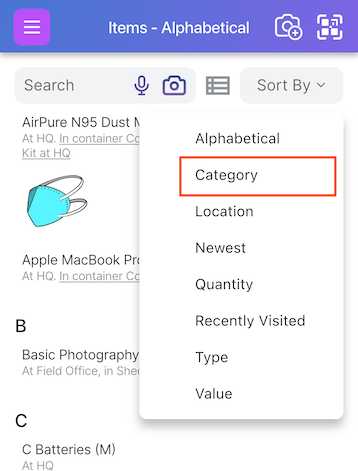
On the Item List page, select Sort By • Category to group your items by category.
Or you can filter items in your results by category by first clicking on the search bar and then selecting the category filter: