
On this page
Scanlily Lot Numbers; Group and Track Items for Auctions, Sales, and Production
Whether you're managing an estate sale, preparing items for auction, or tracking product batches from manufacturing, you often need to group related items together under a single identifier.
Scanlily has just launched the lot number field that lets you assign a tracking code to multiple related items, making it simple to organize, search, and report on grouped inventory.
Now, instead of creating separate containers or custom categories to capture lot numbers, you can tag items with a lot number like "LOT-2025-A" or "Estate-Living-Room-01" that when searched in Scanlily, instantly pulls reports showing everything in that lot.
This comes in handy when you need to generate listings for auction catalogs, track items in an estate sale, or maintain quality control records for manufactured goods. We have also added the Lot Number to your Scanlily inventory reports so you can share them with buyers, clients, or stakeholders who need to see grouped collections.
Here's how to use it:
Step 1: Access your item's details
Click on the item you want to add Lot tags to see the item's description, name, etc. and any other details you've configured beforehand.
Step 2: Add the Lot field
On the item page, click the three-dot menu at the bottom right of the screen and then click 'Add or Remove Fields' to access your list of attributes: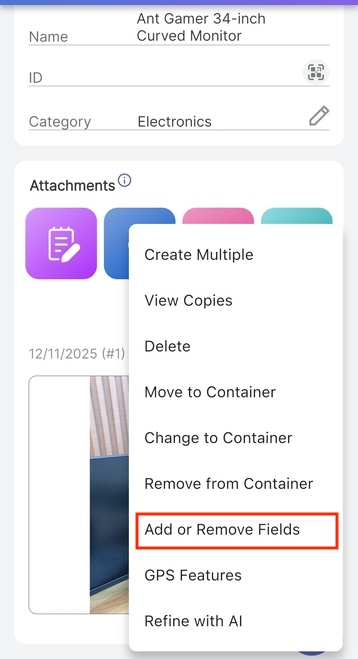
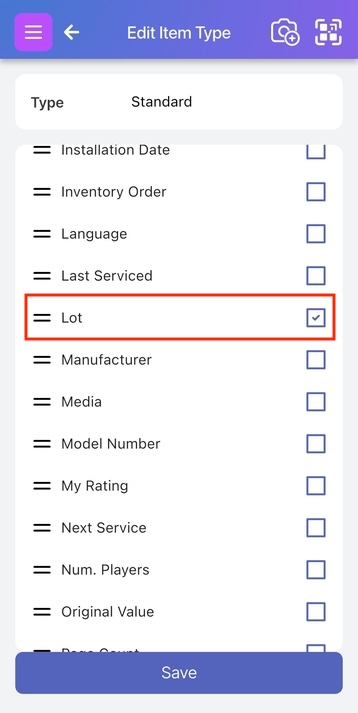
To each item or container you're tracking with Scanlily, you can add dozens of fields and the Lot attribute is one of them.
Check the Lot box to enable a Lot number allotment for your item and click 'Save':
Step 3: Specify the item's Lot Number
After saving the fields, you'll be redirected to the item page and the Lot field will now be visible.
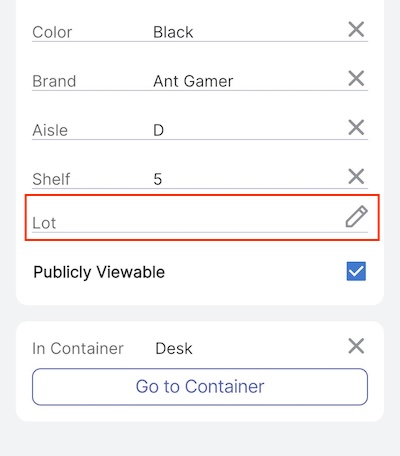
Click the 'pencil' icon beside the Lot field to set the lot number for your item(s). If you're running estate sales or are selling items that belong together, specifying a shared Lot Number in Scanlily is like putting a sticker on them that says 'these go together'
Click the check button beside the Lot field to save it.
Exporting inventory sorted by Lot Number on the web app
On the Scanlily web app, we have also added a new tab under 'Reports' that allows you to export your inventory classified by Lot Number with their images attached.
Step 1: Login to Scanlily on the web app
Login to your Scanlily account on the web app at Scanlily.com
Step 2: Access Reports
Click on the Reports tab in the menu at the top and then click 'View Report' under the 'Items by Lot Number' tab:
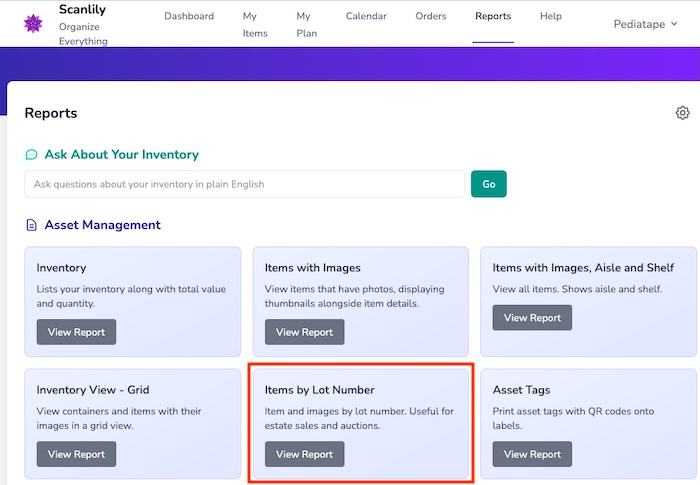
You'll then see your items categorized by Lot Number, and also their images attached to the right of each row.
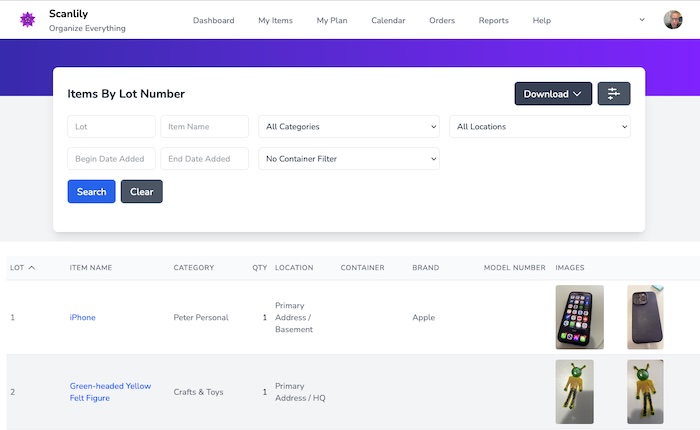
We have also made it so that you can see all the photos attached to each item at a glance, rather than having to scroll through them.
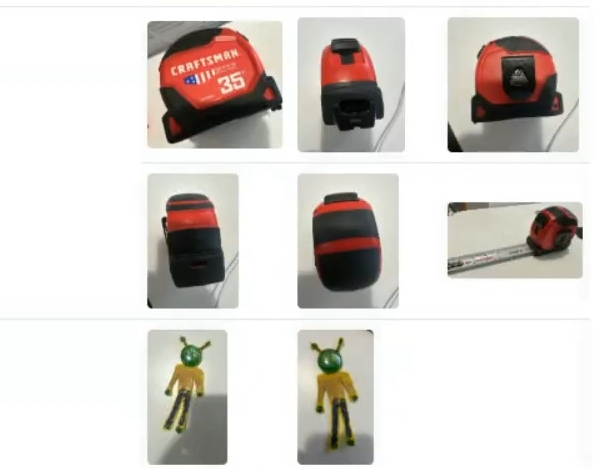
Click on the 'Download' dropdown and choose which format to download the report in 'CSV, Excel, or PDF' and then click 'Download PDF' to have it shipped to your email.
That's it!