
On this page
Most inventory tools make you search for items like a computer. To find what you're looking for, you must type the exact keyword, match the exact category, and filter the results by the exact field. One typo and you have to start all over.
Scanlily's new Ask AI feature lets you search your inventory list like a human. Ask 'Where's the Nikon camera I bought last week and please give me the specs?' and the AI understands what you mean, finds what you're looking for, and tells you exactly where it is along with a detailed description.
And the best part? You can use text or speak to Scanlily and get all the info you want about your items in seconds. Here's how it works:
Step 1: Log in to your Scanlily mobile app and access the 'Ask Anything' menu
Once you're in, click the three-bar menu at the top left and click 'Ask Anything' to open up the AI search feature:
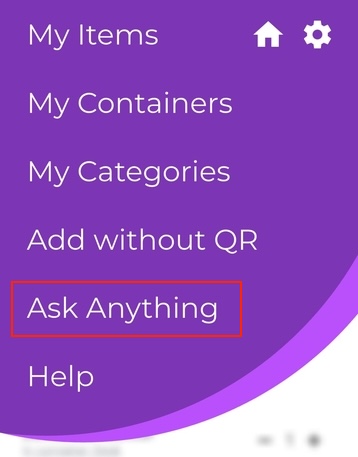
Step 2: Access Scanlily's 'Ask Anything' Tool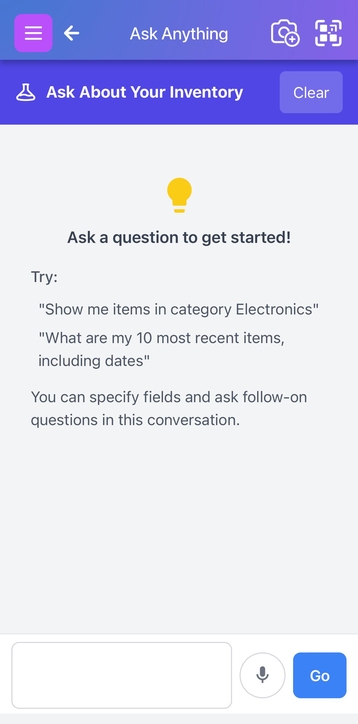
You can now ask Scanlily's AI anything you want to know about your inventory. Find items, sort them, and organize them according to any criteria you want that just wouldn't be possible with traditional inventory management systems.
Text and voice searches
Text search
You can start using Scanlily's Ask Anything by running a text-based search.
Simply type your query in the search box and hit 'Go' to run it.
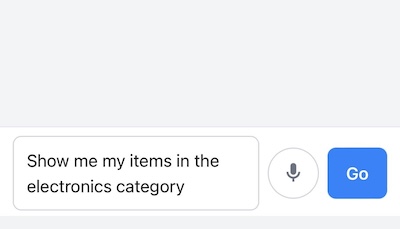
Scanlily's AI will analyze the query to understand it and return the results: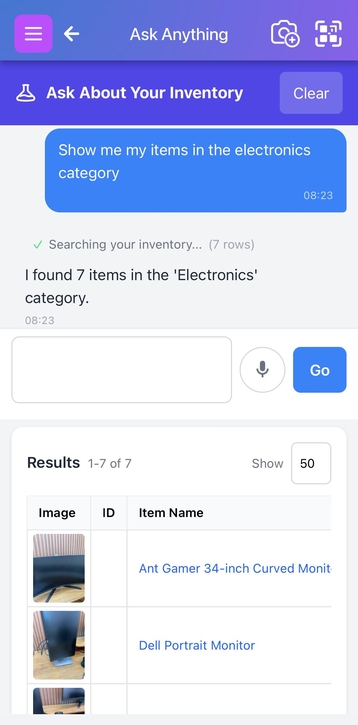
Voice search
For even more convenience, Scanlily's Ask Anything feature includes a voice search portal that lets you run queries by simply speaking into your microphone.
Click the microphone icon beside the text box, and once it's on, the microphone icon will glow red:

Once you're done recording your search, click the microphone once again to turn it off:
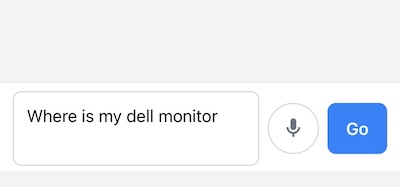
Scanlily's voice search works using a speech-to-text converter that transcribes what you say into a text query. Once the tool is done transcribing, click 'Go' to run your query:
What can you ask Scanlily's AI?
So what kind of questions can you ask Scanlily's AI, and how advanced can your queries get to find and organize your items quickly? Let's show you:
Find specific items:
Scanlily's AI allows you to search for specific items in your inventory list.
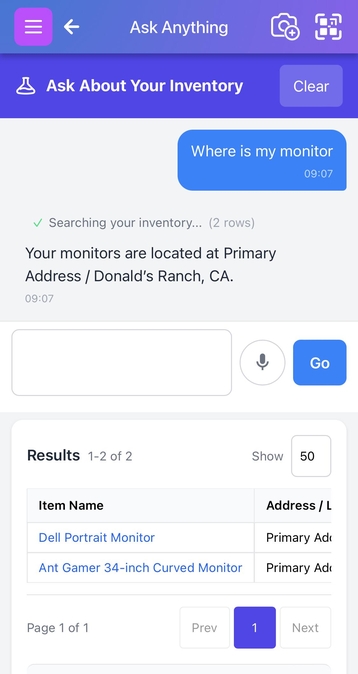
Run a search like 'where's my Sony camera?' and the tool will check your inventory list to retrieve it. And if you have multiple similar items in your list, all matching items will be shown in the results:
So you can ask questions like: "Where is my purple crochet doll?", "Where's the camera kit we purchased last week?", or "Which container has the blue extension cables?"
Know the quantities of items
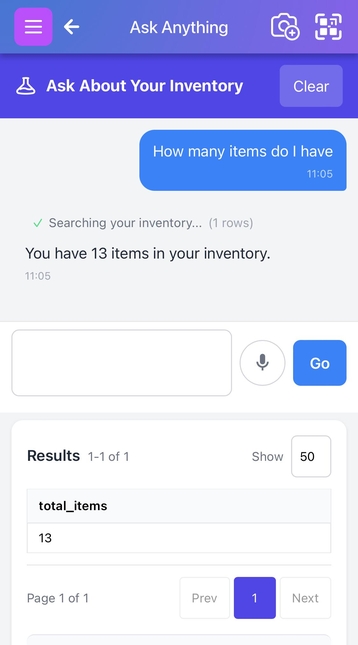
Want to know the quantities of items in your inventory? You can ask Scanlily for the exact counts of specific items or of all items in your inventory.
You can even take it a step further and ask the count of items at a location or that have a specific condition. For example, "How many items do I have?", "How many items are at each location?", or "How many items are flagged for maintenance?"
Generate high-level reports of your items
Scanlily's Ask Anything really shines when you need deep insights into your inventory. In one prompt, you can generate a structured report that pulls data across all your items' attributes, locations, containers, and categories. Inventory reports that typically take hours or days can now be done in seconds.
Now, you can type "Show me all items flagged for repair across all locations", "Give me a summary of how many items are in each warehouse", or "Show me everything checked out in the last 7 days" and you'll have a detailed report that you can then…
Export your inventory data
Scanlily allows you to export the results of your searches to your email or download them in PDF format at any time. You have full access to your inventory data and can run more detailed analyses to guide decisions for your organization.
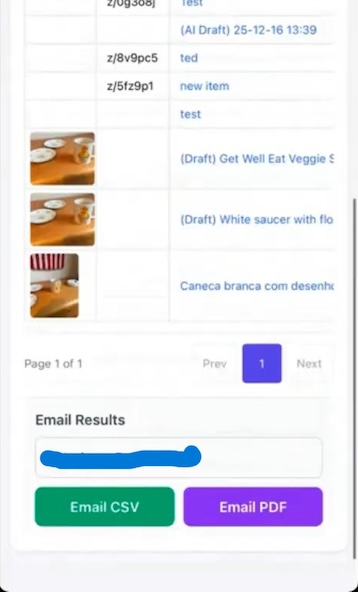
Simply click the 'Email CSV' to receive the report to your attached Scanlily email as a CSV file or 'Email PDF' to receive it as a PDF file.
Your reports are sent in a clean, readable format and it's easy to share inventory summaries with your team, accountant, or insurance provider without any manual data preparation.
Free users can generate reports within the app but are limited to 10 downloads before needing to upgrade.
Using Scanlily's Ask Anything on the web app
Scanlily's Ask Anything is available on both the mobile and web apps. On the Scanlily website, head to Reports, then under the Ask About Your Inventory tab, type your query into the search engine and click 'Go':
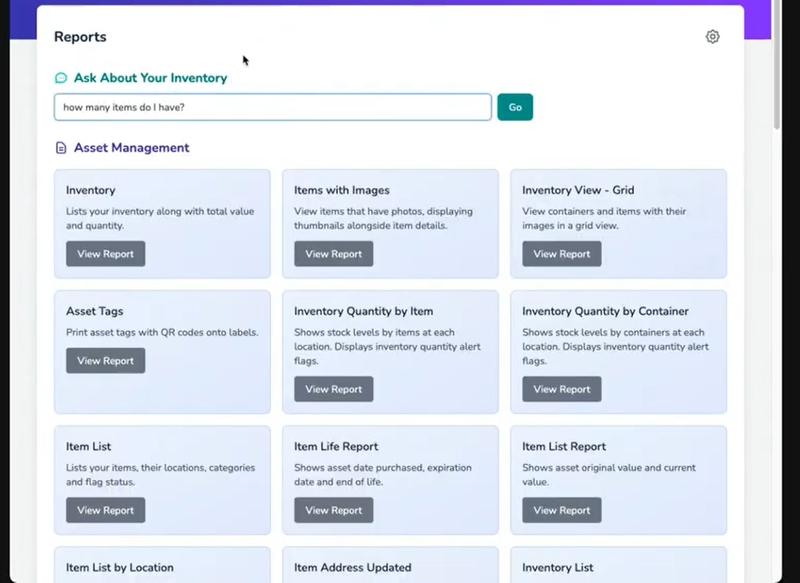
On the answer page, click on the 'Download' dropdown and then select either CSV or PDF.
When results look a little different… nuance
Scanlily's Ask Anything feature combines database search with AI understanding, and the results you get may vary depending on how you phrase your question.
Basically, whenever the AI has to make 'judgment calls' or handle open-ended searches, you may get slightly different outputs. For example, if you search for "electronics," the AI has to decide whether a wire or a cable counts as an electronic item. Different people would answer that differently, and the AI works the same way.
However, specific, factual questions, such as "what items are in my category named Electronics?" or "show me everything in Box 3," will always return consistent results.
Tips for better results
To get the best results from Scanlily's Ask Anything, ask specific and detailed questions, for example, 'Where is my Canon camera?' vs. 'Where's my camera?'. You should also include attributes like location and time wherever they're relevant.
Use categories too, and if you want to know quantities, ask them directly. And finally, generate and download your reports, not just find items.