
On this page
When you upload images or videos through the web-based Upload feature, Scanlily’s AI recognizes items in each file and creates draft entries for them. The Approve Drafts page is where you review those AI-generated items, choose which details to keep, and approve them into your inventory.
Approve Drafts is also a timesaver when you prefer to add items with the mobile app’s image and video recognition while you’re on the go, and save the review step for later. Working on a laptop’s bigger screen lets you see more detail at a glance, compare items side by side, and move through approvals faster than on a phone.
Opening the Approve Drafts page
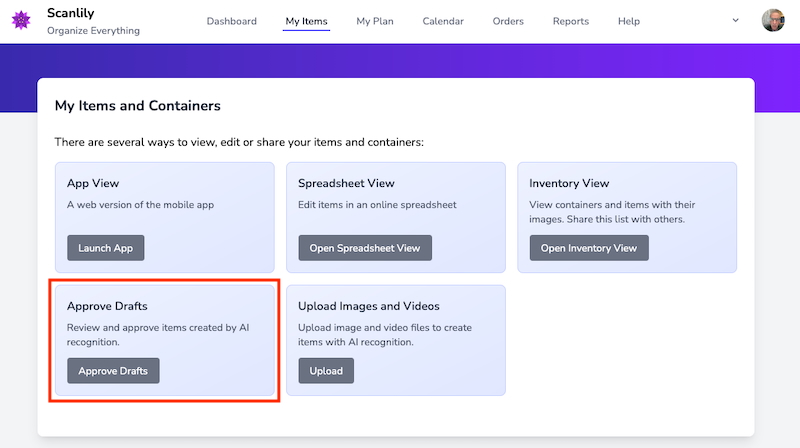
Log in to the Scanlily User Website and click My Items in the navigation bar. On the My Items and Containers page, click the Approve Drafts card:
Reviewing and approving draft items
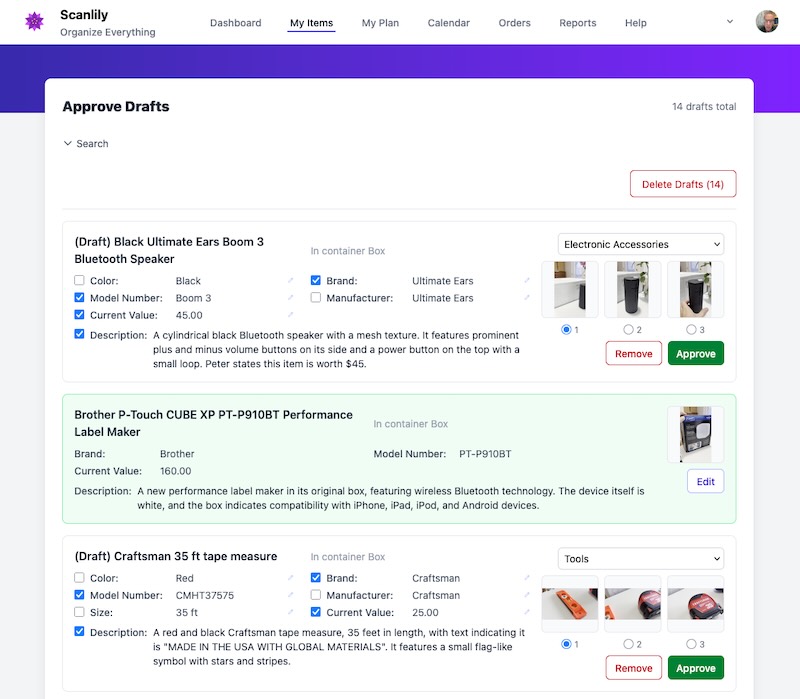
The Approve Drafts page lists every item the AI has created as a draft. Each card shows the item’s proposed name, the AI-detected field values (such as Color, Brand, Model Number, Current Value, Manufacturer, and Description), the category, and up to three thumbnail images.
Selecting which AI-proposed values to keep
Each field value the AI detected has a checkbox next to it. Checked fields will be saved to the item when you approve it; unchecked fields will be discarded. The AI checks the fields it is most confident about by default, and leaves uncertain values unchecked — but you can check or uncheck any field before approving.
Choosing a category
A category dropdown appears on the right side of each card. The AI suggests a category based on the item it recognized. You can change it to any of your existing categories before approving.
Picking a cover photo for video items
For items created from video recognition, the AI extracts multiple screenshot frames from the video. You’ll see up to three candidate thumbnails with radio buttons labeled 1, 2, and 3. Select the one that best represents the item — this becomes the item’s primary image. The other frames are discarded on approval.
Approving an item
Click the green Approve button on the card. The item is saved with the checked field values and selected category, the draft prefix is removed from the name, and the card turns green to confirm it’s been approved. You can also use Approve All at the top to approve every draft on the page at once.
Editing values before or after approval
You can click on any field value to edit it inline before approving. After a card turns green, an Edit button appears in place of the Approve button — clicking it takes you to the full item detail page where you can make further changes:
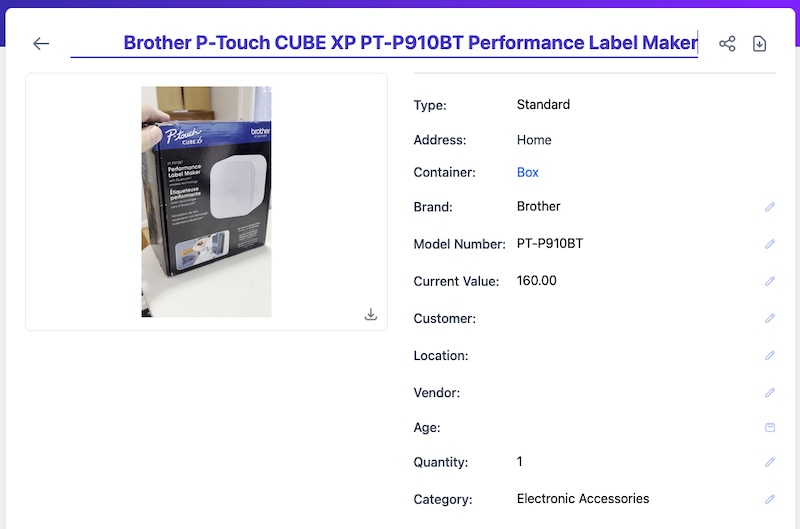
On the item detail page you can edit any field by clicking the pencil icon beside it, add or remove attributes, change the category, upload additional photos, and more.
Removing draft items
If the AI created an item you don’t need, click the red Remove button to delete it. You can also use Delete Drafts at the top to remove all drafts matching your current filters.
Filtering and sorting drafts
Click the Search toggle to reveal filter options. You can narrow the draft list by:
- Customer — Show drafts for a specific customer
- Location — Filter by address and location
- Container — Show only items inside a specific container
- Sort — Order by name (A–Z or Z–A) or by date (newest or oldest first)
This is helpful when a video walkthrough created many items across different locations and you want to approve them in batches.
Editing approved items later
After approval, items are part of your regular inventory. You can edit them at any time through several views on the User Website:
- My Items → Inventory View — Browse items with their images and click to edit
- My Items → Spreadsheet View — Edit field values directly in an online spreadsheet
- My Items → App View — Launch the web version of the mobile app and edit from there
You can also edit approved items from the Scanlily mobile app at any time.
A typical workflow
- Upload or record — Use the web upload feature to upload photos and videos from your browser, or record items with the mobile app’s AI recognition while in the field.
- Review on a big screen — Back at your desk, open My Items → Approve Drafts on your laptop. The larger display makes it easy to compare images, read AI-generated descriptions, and spot anything that needs correcting.
- Approve in bulk — Check or uncheck fields as needed, pick cover photos for video items, select categories, and approve. Use filters to work through drafts location by location.
- Fine-tune later — If anything needs adjusting after approval, edit via Inventory View, Spreadsheet View, App View, or the mobile app.
Who can use Approve Drafts?
Approve Drafts is available to all Scanlily subscribers — Free, Pro, and Business — who have draft items awaiting review. Draft items are created whenever Scanlily’s AI processes an image or video, whether uploaded from the web or captured in the mobile app.