When you’re out in the field - documenting a fire-damaged property, cataloging an estate, or surveying equipment at a remote site - you often don’t have reliable internet. Scanlily’s mobile app works best with a live connection, where you snap a photo or record a video and AI recognition creates inventory items on the spot. But what happens when there’s no signal?
With Web Upload, Scanlily Business subscribers can take hundreds of photos and videos offline using their phone’s camera, then upload them all at once from a browser when they’re back at a desk with a solid connection. Scanlily’s AI processes every file and creates draft inventory items for your review.
Take photos on-site, upload later from your browser
Use your phone’s native camera to take photos and videos on-site - no internet required. Your phone stores everything locally, giving you a backup of the original media. When you’re back at a desk with a connection, transfer the files to your computer (AirDrop, USB, cloud sync, email - whatever you prefer) and open the Scanlily Upload page.
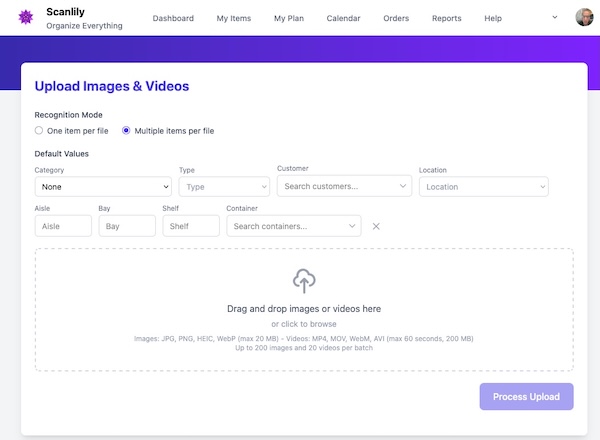
Before dragging files in, set default values that will apply to the entire batch: Category, Customer, Location (down to Aisle, Bay, and Shelf), Item Type, and Container. If you’re uploading 50 photos from a client’s living room, set the Customer and Location once - every AI-recognized item inherits those values automatically. Then drag and drop up to 200 images and 20 videos at once into the upload zone.
AI creates draft items for your review
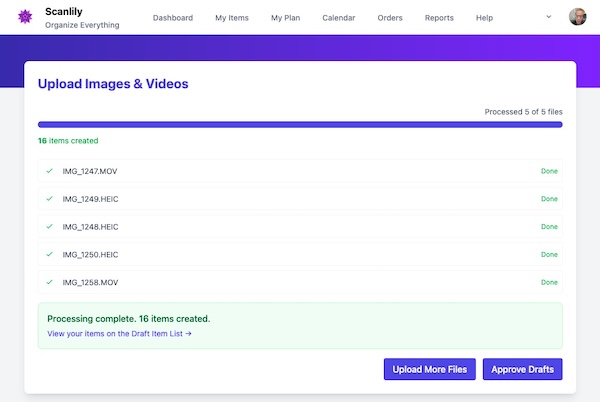
Once you click Process Upload, the AI works through your files. A progress bar tracks each file, and you can see individual status updates as items are created. Videos with voice narration are supported — if you described items while filming, the AI incorporates your spoken descriptions into the item details.
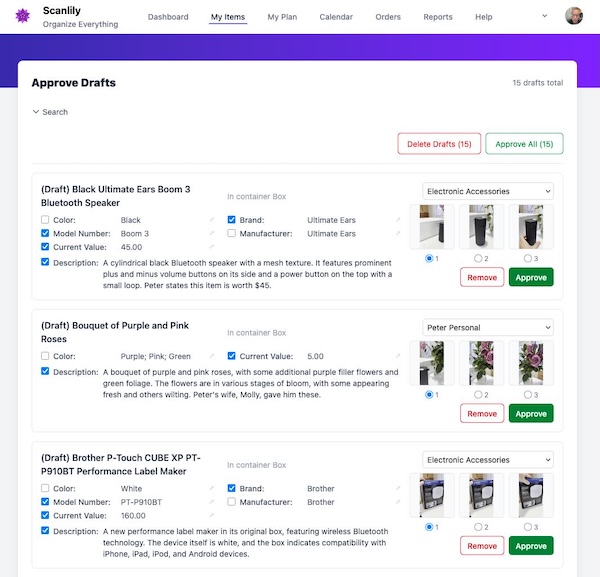
Created items land on the Approve Drafts page. Here you can review what the AI found, edit any details, and approve items individually or in bulk. Nothing enters your live inventory until you approve it.
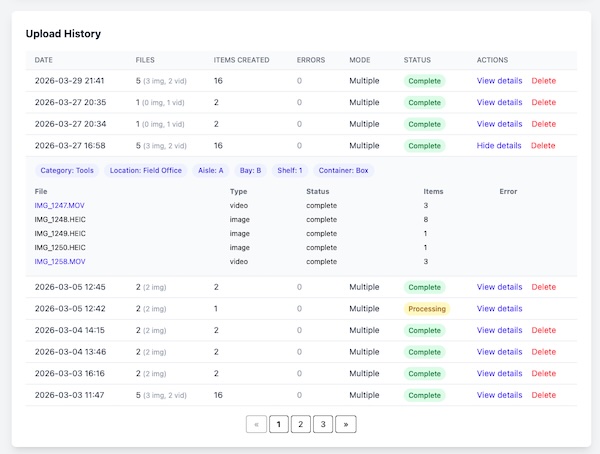
Every upload batch is also tracked in your Upload History with timestamps, file counts, items created, and processing status. You can view the details of any batch, re-run one that had errors, or delete a batch and its draft items.
Built for offline-first workflows
Web Upload is especially valuable when on-site internet isn’t available or reliable:
Insurance adjusters
After a fire, flood, or storm, the property may have no functioning internet. Adjusters can walk through each room taking photos and videos with their phone’s camera, knowing everything is safely stored on the device. Back at the office, they upload everything organized by room and location, and the AI creates a detailed inventory. The original photos on the phone serve as a timestamped backup of the scene.
Estate sale companies
Photographing an entire household often means hundreds of items across many rooms. Take all the photos on-site, then batch-upload them later with the customer and location pre-set for each room.
Warehouse and facility receiving
When new shipments arrive faster than you can catalog them, snap photos of everything first. Upload later with the correct aisle, shelf, and container defaults already set.
Try it today
Web Upload is available now for all Scanlily Business subscribers. Log in to the Scanlily User Website and select Upload from the navigation menu.
Combine it with Navigate for location drill-down, Reports for analysis, and Multiple Users for team workflows.