Get Prices estimates the value of any inventory item by searching the live web for comparable products and weighing those listings to produce a defensible suggested value. Snap a photo to price a single item; capture a walk-through video to price everything in it - a damaged room, a storage unit, or a whole household comes back as a fully priced inventory. The feature serves insurance adjusters who need a Replacement Cost Value, estate-sale companies who need a Fair Market Value, and general inventory owners who want to quickly value their belongings.
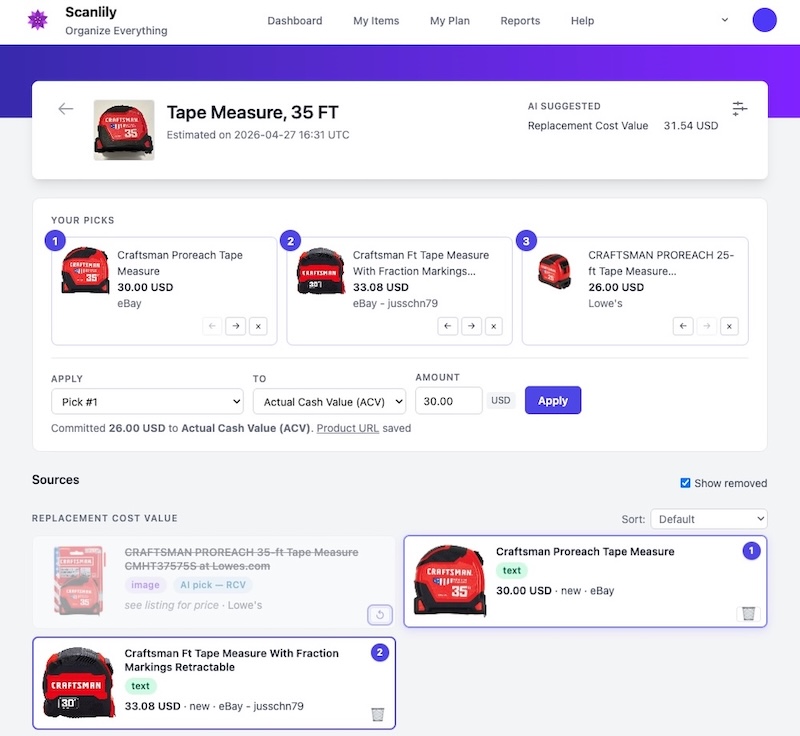
Every estimate is built from real, current listings on sites like eBay, Lowe's, specialist retailers, and manufacturer pages. Each source is shown with a thumbnail, a price, the merchant, the listing condition, and a link back to the original page. The AI's top pick is the headline number, but you always see the listings that produced it and can change which one wins with a single tap.
Behind the scenes, Scanlily runs two parallel searches and combines the results: a reverse-image search that compares your photo against retailer catalogs, and a text search built from the item's name, brand, and model number. Each source carries a small chip showing whether it came from the image search, the text search, or both. The two paths complement each other, which is what makes the feature versatile across very different items: a current mass-market product, a discontinued tool, a vintage book, a specialist piece of equipment. Cases where one search comes up empty are usually rescued by the other.
From capture to priced item, hands-free
When you capture an item with the camera, the price estimate kicks off the moment you save the draft. While the AI Draft page shows the fields the AI has filled in for review, a status banner reads "Estimating price from the web…" and the search runs in parallel.
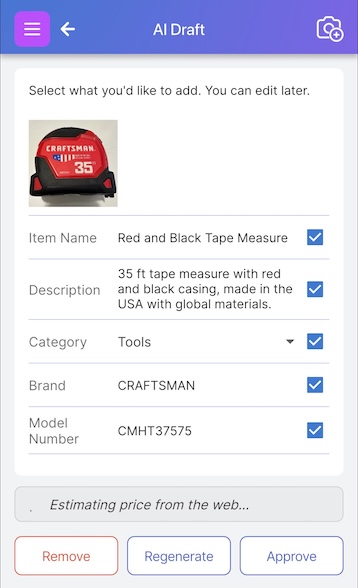
Pricing usually takes longer than reviewing the AI Draft, so you don't have to wait for it. Press Approve and move on. The estimate finishes in the background, and the AI's top pick is written to the field your account is configured to update the moment it does. If Save URL to Product URL is enabled in Pricing Settings, the source listing's URL is attached to the item at the same time, so the applied price carries a verifiable web reference.
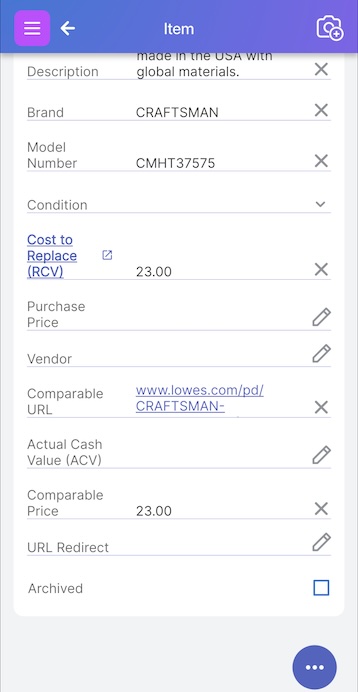
For most items, the AI's top pick is right and there is nothing left to do. When you capture a video instead of a single photo, every item the AI extracts from the video is priced the same way. A single walk-through of a damaged room, a storage unit, or a household produces a fully priced inventory by the time you've finished reviewing the AI Drafts — no per-item research, no spreadsheet entry, no second pass to look up values.
This automatic flow is the default for insurance and estate-sales subscribers. General subscribers default to running the estimate on demand instead, with a Get Prices button on the item page; the rest of the experience is identical.
Three valuation modes for different needs
Three valuation modes determine what the AI searches for and which listings it favors:
- Replacement Cost (RCV). What it would cost to replace the item with one of like kind and quality at current retail. The AI prefers new-condition retail listings, then falls back through current substitutes, specialist dealers, and used-resale prices when nothing newer exists, and reports which tier produced the number.
- Fair Market (FMV). The price the item is likely to realize in the used or resale market. The AI prefers used-resale and specialist-auction listings.
- Automatic. Returns whichever valuations are informative for the item. Most items get both RCV and FMV. Rare or discontinued items often get only one.
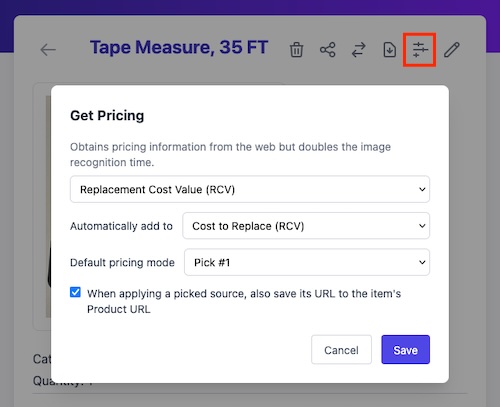
The mode and the auto-apply target are set per subscriber. Insurance subscribers default to RCV, with auto-apply writing to Cost to Replace (RCV). Estate-sale subscribers default to FMV, with auto-apply writing to Price. Other subscribers default to Automatic with auto-apply off, so estimates wait for an explicit Apply step. Every default is overridable in Pricing Settings.
See and override every source
When you do want to inspect or change an estimate, the Price Estimates page lays out every listing the AI considered. Sources are grouped by valuation: RCV in one tab, FMV in another in Automatic mode. Each card carries a thumbnail, price, merchant, and condition. The AI's top pick in each group carries a small AI pick chip.
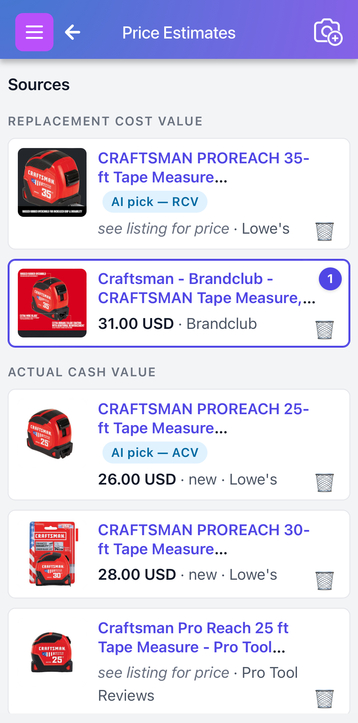
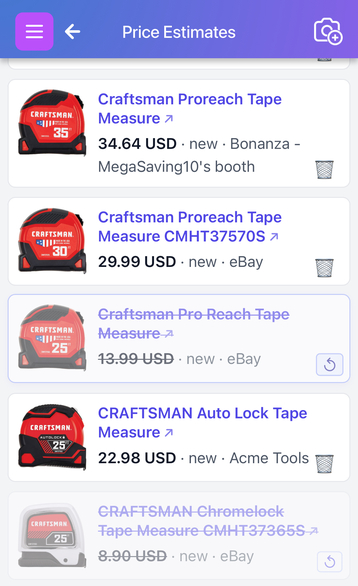
A trash icon on each card strikes a source through, removing it from the AI's suggestion and from any average-based commit modes. Use it to drop obvious mismatches like a different brand, a wholesale lot, or a refurbished card when you need new-condition pricing.
The Apply and To dropdowns commit a value to a field. Apply chooses which value (the AI's suggestion, a specific Pick, an average of the top three picks, an average of all remaining sources, or a custom number). To chooses which field (Price, Cost, Current Value, Original Value, or their persona-renamed equivalents).
Below the source grid, an AI analysis panel explains how the AI arrived at the suggested value: which listings it weighted highest, which it discounted as poor matches, and how it handled differences in condition or model variant. The explanation is the same one the AI produced internally, so there is no hidden scoring step behind it.
Available in the mobile app and on the web
Get Prices works the same way on the Scanlily mobile app and on the user website. The pricing settings, the Apply and To dropdowns, the trash-to-strike behavior, and the auto-apply rules are identical. An estimate cached on one device is visible on the other; open the item on the web after a mobile capture and the same Price Estimates page is there, with your picks and any struck-out sources preserved.
Reports and shareable inventory
Committed prices flow into the rest of Scanlily. Reports that include value columns pick up the price the moment it lands on the item, with the source URL alongside it. Business insurance subscribers can run a Claims Report against any selection of items; it includes Replacement Cost Value, Comparable URL, and the rest of the adjuster fields, ready to attach to a claim. Other Business subscribers see equivalent reports rendered with the default field labels.
The shareable Inventory View carries the prices into the public-facing layout, so a customer or examiner browsing your inventory by URL sees the same values you committed in the app. PDF, CSV, and Excel exports include the price and URL columns too.
Subscription tiers and limits
Pricing is available on every tier, with limits that depend on the subscription level and on whether the item carries a purchased Scanlily QR sticker.
- Pro and Business subscribers. Unlimited estimates. Each item can be re-priced once every thirty days; editing the item or changing its pricing mode makes it immediately re-priceable.
- Free subscribers with a purchased Scanlily QR sticker on the item. One estimate per stickered item, ever. View Prices afterward is unlimited and free.
- Free subscribers without a sticker. Bounded by a subscriber-level quota of twenty estimates by default.
Opening View Prices to inspect or re-commit values from a cached estimate is always free; only the underlying web search counts against any quota.
For step-by-step instructions covering capture, the AI Draft flow, persona-specific defaults, the web Price Estimates page, the field-label table for insurance subscribers, and the Reports section's Claims Report workflow, see the Get Prices - How To guide.