When you're managing hundreds or thousands of items across multiple buildings, warehouses, or storage locations, finding specific items can become a hassle.
Scanlily just launched Navigate, a feature that gives you a visual way to drill down through your location hierarchy. Instead of selecting filters one by one, you can drill through your location structure the way you click folders on your computer, seeing exactly what's stored at each level.
Navigate is available for Pro and Business subscribers managing inventory with hierarchical locations, think, warehouses with aisles, bays and shelves, multi-location businesses, or anyone organizing items across buildings, rooms, and storage areas.

Here's…
How Navigate works
Scanlily's Navigate feature shows you your entire location structure in one panel, starting from your broadest location down to specific aisles, bays and shelves.
Here's what it looks like:
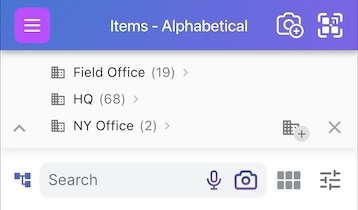
At the broadest level is your address, think buildings and properties. After clicking the address, Navigate will take you to the location (room) in your broad address. And after clicking the location, you'll see the aisles and bays and then finally, shelves to see specific positions of items after clicking those.
These fields create a hierarchy that allow you to find items conveniently in this order: Address (Site) ➤ Location (Room) ➤ Aisle ➤ Bay ➤ Shelf ➤ Container ➤ Item
Each level is optional. For example, you can have just the following:
Address ➤ Location ➤ Shelf ➤ Item
Number of items showcased
One great feature about the Scanlily Navigate is that wherever you are in the location hierarchy, you are shown the number of items in that spot, plus the items themselves just below the navigate panels.
Say we tapped HQ, we'll see the items there, and it expands to show all locations within HQ: Basement, Closet, Front Office, etc.
Now, you can click a sub-location, say Basement, and see what's inside. The item list below updates instantly to show only what's at that exact spot.
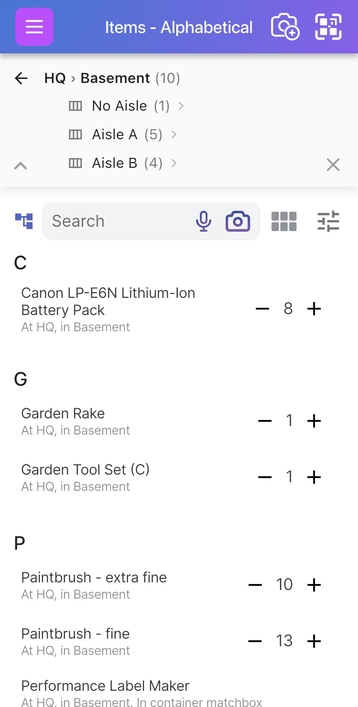
Now, there's no more clicking several filters and location dropdowns to find what you want. You simply click Navigate and then drill down to the specific shelf or aisle.
Added items automatically inherit the location
When you drill down to a specific location and add new items, they automatically inherit that location.
So, say on your Scanlily account, you head to Headquarters > Storage Room > Aisle 7 > Shelf B, then add 9 items via video… all 9 of them automatically get assigned to that exact location!
Who's Scanlily Navigate built for?

Scanlily Navigate is most beneficial for people and companies who use hierarchical storage. For:
Warehouse managers
With Scanlily navigate, warehouse managers can now organize their inventory by aisle and shelf with precise location tracking. Instead of searching entire warehouse sections, pickers can drill down to exact aisles and shelves, and when new shipments arrive, you can add items to the correct aisle/shelf automatically.
Businesses with multiple locations
Businesses with several branches or physical locations can track items across multiple stores or facilities. On your Scanlily account, you simply navigate by property first, then drill into specific rooms or storage areas.
Insurance adjusters
If you're an insurance adjuster, you can catalog and group items and property by room when documenting estates. You simply need to navigate to the:
Address > Living Room > Entertainment Center
…to see everything in that specific area. With Scanlily navigate, your location hierarchy mirrors how properties are actually organized!
Try Scanlily's Navigate right away
Scanlily Navigate is available now for Pro and Business subscribers. Open your Scanlily app and click the three-bar menu at the top left of the screen:
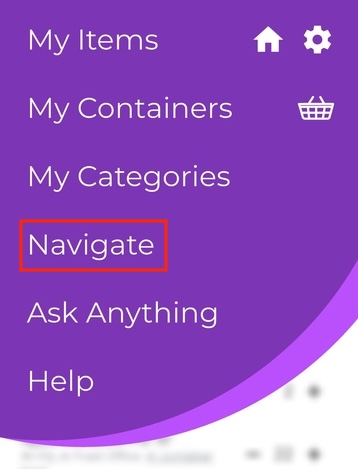
Now, click the "Navigate" button or tap the location hierarchy icon on the Items page next to the search bar.
Navigate will show your location hierarchy, and you simply need to click through levels to drill down to specific locations. As you move through levels, your item list will update to show only items at that spot:

Learn More:
Check out our detailed help article with step-by-step instructions and tips for using Navigate with customer filtering.
Scanlily's Navigate makes location search finally work how you think
Scanlily's Navigate is a few clicks through a visual hierarchy. If you're managing hundreds or thousands of items across multiple locations, this will be a major timesaver!
Navigate is live now for our Scanlily Pro and Business subscribers. If you're on a free plan and manage inventory across many locations, this feature alone might make upgrading worthwhile.
Try it today and experience location-based searching the way it should work.